How to Reduce Keyboard Latency in Gaming for Faster Response
 Manoj Mharana · July 20, 2026 · 5
Every competitive gamer has felt it at some point. You press a key and the action on screen happens just a fraction of a second too late. That small delay has a name. It is called keyboard latency, and reducing it can meaningfully improve your reaction time, accuracy, and overall performance in fast-paced games.
This guide covers what causes keyboard latency in gaming, how to measure your current baseline, and every practical step you can take to reduce it. Before you change anything in your setup, use our free keyboard latency tester to record your starting point. That way you can measure whether each change you make is actually helping.
What Is Keyboard Latency and Why Does It Affect Gaming
Keyboard latency is the total time between pressing a key and seeing the result of that action on your screen. It is measured in milliseconds. In everyday tasks like writing documents or browsing the web, even 50 ms of latency is completely unnoticeable.
In competitive gaming, particularly in FPS titles, battle royale games, and fighting games, latency above 20 ms can be the difference between landing a shot and missing it.
The reason it matters so much in gaming is that human reaction time is typically between 150 ms and 250 ms for visual stimuli. Anything that adds unnecessary delay on top of that reaction time compounds the disadvantage.
If your keyboard, system, and display are collectively adding 50 ms of extra latency, you are effectively operating with a slower reaction time than your opponent who has a well-optimised setup.
According to research on human motor response and input systems, even delays that fall below conscious perception can affect accuracy in high-speed tasks.
Competitive players who play at the highest levels are often operating at a level where these small margins are the entire difference between winning and losing.
The Main Sources of Keyboard Latency
Latency does not come from one place. It is the sum of several small delays across your entire input chain. Understanding each source helps you prioritise which ones to fix first.
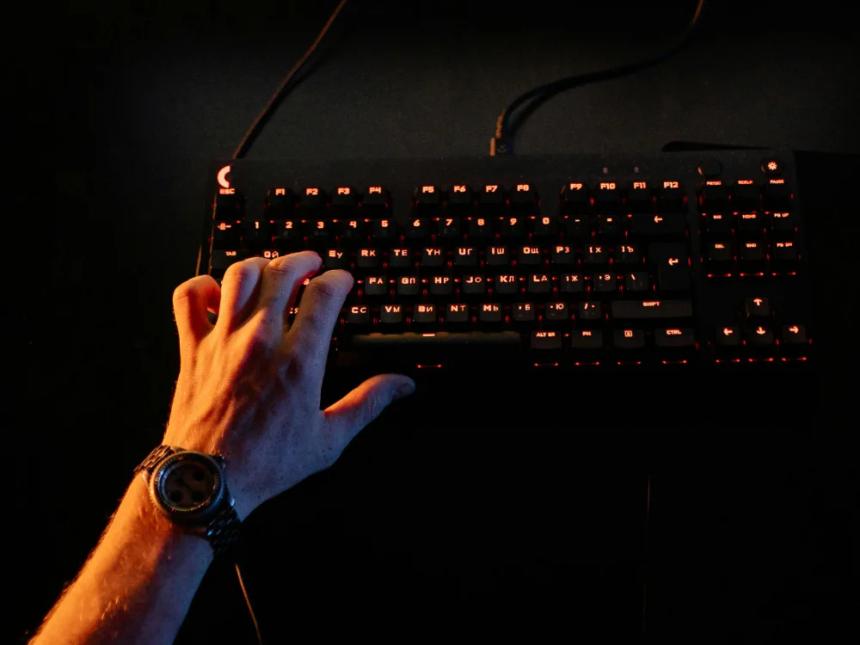
The keyboard hardware itself contributes latency based on its switch type, polling rate, and firmware. Membrane keyboards typically have higher latency than mechanical keyboards.
Among mechanical switches, optical switches register keypresses using light rather than physical contact, which makes them among the fastest available.
Linear switches actuate smoothly without a tactile bump, which also contributes to faster response compared to heavier tactile or clicky switches.
The polling rate of your keyboard determines how often it reports keypresses to your computer. A keyboard running at 125 Hz reports every 8 ms.
One running at 1000 Hz reports every 1 ms. This single setting can account for up to 7 ms of avoidable latency if your keyboard is set to a low polling rate.
Your connection type matters as well. Wired keyboards have a direct and consistent communication path to your PC.
Wireless keyboards, including Bluetooth models, introduce transmission delays that vary depending on interference, battery level, and the quality of the wireless implementation. For competitive play, wired is always the more reliable choice.
System performance plays a role too. If your CPU is under heavy load from background processes, it takes longer to process USB interrupts and register keystrokes. This is not usually the biggest source of latency but it contributes to inconsistency.
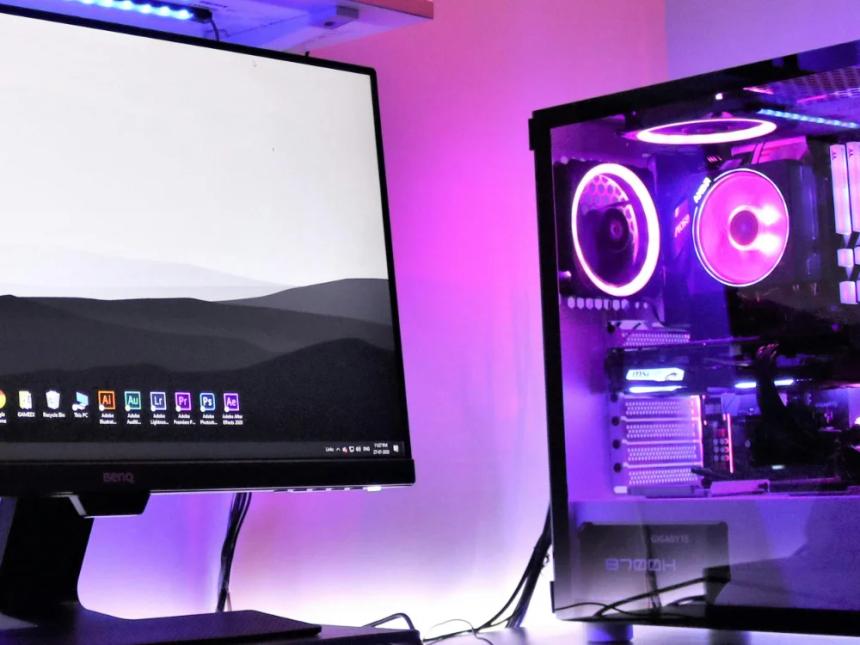
Display latency is the most overlooked factor. Even if your keyboard is registering inputs instantly, a monitor with high input lag will make your keyboard feel slow because you are waiting longer to see the result of your keypress on screen.
A 60 Hz monitor with 15 ms input lag adds that delay to everything you do.

Step One: Measure Your Baseline
Before making any changes, run the keyboard latency tester on our site and note your current reading. Write it down. This number is your baseline.
Make one change at a time. After each change, run the test again and compare. This approach tells you exactly which fixes are making a real difference and which ones are not worth the effort for your specific setup.
This matters because keyboard latency is highly system-specific. A fix that dramatically helps one person's setup may have no effect on another. Testing before and after each change removes the guesswork entirely.

Optimising Your Keyboard Hardware
Start with the keyboard itself since it is the most direct source of input latency.
If you are using a membrane keyboard and competitive gaming matters to you, switching to a mechanical keyboard with optical or linear switches will give you a noticeable improvement.
Optical switches from brands like Razer and SteelSeries register keystrokes at the speed of light rather than relying on physical metal contact. This eliminates the tiny contact bounce delay that mechanical switches require debounce time to filter out.
Set your keyboard's polling rate to 1000 Hz. Open your keyboard's companion software, whether that is Razer Synapse, Corsair iCUE, Logitech G HUB, or another tool, and find the polling rate or report rate setting. Change it to 1000 Hz and apply. Then run the latency test again to confirm the change took effect.
If you use a wireless keyboard, connect it via its USB cable for gaming sessions. Most wireless gaming keyboards support wired mode and perform at the same level as a wired keyboard when connected directly.
The wireless performance of the same keyboard is almost always slightly less consistent, particularly in environments with 2.4 GHz interference from routers and other devices.
Update your keyboard firmware. Manufacturers regularly release firmware updates that improve polling stability, fix debounce timing issues, and reduce input lag. Check your keyboard manufacturer's website or software for the latest version.
Optimising Your System Settings
Hardware improvements only go so far if your operating system is working against you.
Switch your Windows power plan to High Performance. Go to Control Panel, then Power Options, and select High Performance. This prevents Windows from throttling your CPU and USB controller to save power, both of which can add inconsistency to input processing.
Disable USB selective suspend. Go to Control Panel, Power Options, Change Plan Settings, Change Advanced Power Settings, and find USB Settings. Set USB selective suspend to Disabled. This setting is designed to cut power to idle USB devices but it can cause your keyboard to briefly wake up before registering an input, adding a small but measurable delay.
Turn off overlays during competitive play. Steam Overlay, Discord Overlay, Xbox Game Bar, and GeForce Experience Overlay all run as additional layers on top of your game. Each one adds a small processing overhead that can contribute to input latency. Disable them in their respective settings menus.
Close unnecessary background applications before gaming. Web browsers, especially those with many open tabs, consume significant CPU and RAM. Background updaters, cloud sync services, and streaming software all compete for system resources that your game and input processing need.
Keep your keyboard drivers up to date. Open Device Manager, find your keyboard under the Human Interface Devices section, right-click it, and select Update Driver. Outdated HID drivers occasionally cause input processing delays that a driver update fixes entirely.
Optimising Your Display
This is the step most people skip, but display latency is often the single largest contributor to perceived keyboard lag.
A 60 Hz monitor updates its image 60 times per second. That means there is up to 16.7 ms between frames regardless of how fast your keyboard and system are. Upgrading to a 144 Hz monitor cuts that maximum frame delay to 6.9 ms. A 240 Hz monitor reduces it further to 4.2 ms.
Enable Game Mode on your monitor if it has one. Game Mode disables post-processing effects like dynamic contrast, motion smoothing, and colour enhancement that add input lag even when your GPU is rendering frames quickly. Most gaming monitors have this setting in their OSD menu.
Disable V-Sync in your game settings. V-Sync synchronises your frame output to your monitor's refresh rate, which eliminates screen tearing but adds input latency of up to one full frame. In competitive games, the tradeoff is almost never worth it.
Use NVIDIA G-Sync or AMD FreeSync instead if you have a compatible monitor. These adaptive sync technologies eliminate screen tearing without the input lag penalty that V-Sync introduces.
Run your games in Exclusive Fullscreen mode rather than Borderless Windowed. Exclusive Fullscreen gives your GPU direct output access to the display, which reduces the processing overhead that windowed modes introduce. In most competitive titles this can reduce input latency by several milliseconds.
Enable low latency features in your GPU driver. NVIDIA Reflex, found in many popular games, reduces the render queue length so that your inputs affect the most recently rendered frame rather than one that was queued earlier. AMD Anti-Lag performs a similar function for AMD graphics cards.
Advanced Fixes for Persistent Latency Issues
If you have made the above changes and are still seeing high latency in your test results, these additional steps can help.
Connect your keyboard directly to a rear USB port on your motherboard rather than a front panel port or USB hub. Rear ports connect more directly to the USB controller on the motherboard and are less prone to the buffering and timing issues that front panel ports and hubs can introduce.
Use a USB 2.0 port for your keyboard rather than USB 3.0 or 3.1. This sounds counterintuitive but USB 2.0 has lower polling overhead for HID devices like keyboards and mice. USB 3.0 ports can sometimes introduce additional interrupt latency for input devices specifically.
Consider custom keyboard firmware if you have a keyboard that supports it. Tools like QMK firmware allow you to configure debounce times at the hardware level. Reducing debounce time lowers the minimum possible latency for each keypress. This is an advanced option that requires some technical comfort but can shave several milliseconds off your input latency.
Lock your in-game frame rate to a stable value rather than letting it fluctuate freely. A frame rate that bounces between 180 and 240 FPS creates inconsistent frame timing that can make inputs feel irregular even when latency is low. Locking to a consistent value, such as 144 or 240 FPS depending on your monitor, produces more predictable input-to-screen timing.
How to Know When You Have Done Enough
Run the keyboard latency tester one final time after completing your optimisations and compare it to your baseline. For most gaming setups, a total input-to-display latency of under 20 ms across keyboard, system, and display is genuinely excellent. Under 10 ms across the chain is what high-end competitive setups target.
If your results are in the 10 to 30 ms range, you are in good shape for competitive play at virtually any level. If you are still above 50 ms after all these changes, the most likely culprit is your monitor. Display latency is often the hardest single factor to reduce without a hardware upgrade.
For more on understanding what your latency numbers actually mean and how to interpret different readings, read our detailed guide on keyboard latency results explained. If you also use a gaming mouse and want to check that side of your input chain, our mouse polling rate test gives you the same kind of baseline measurement for your mouse.


